
Browse all guides
Guide 08 / On the go
Use the dashboard on your phone
Follow setup, enter your address and manage availability on a smaller screen.
Screen 6 of 6
Add availability on your phone
Fields stack vertically on a phone. Scroll within the availability window to reach all the controls.
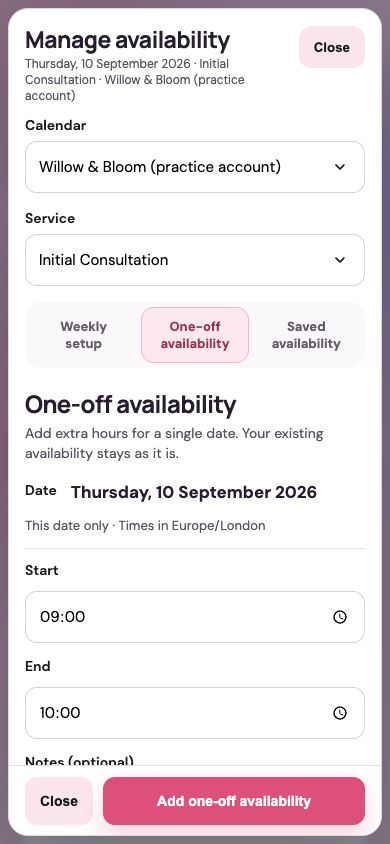
Select the calendar and service
Both selectors have their own row. Check them before entering your hours.
Choose the correct availability tab
Weekly setup, One-off availability and Saved availability work the same way as on desktop.
Check both time fields
Start and end are on separate rows. Check the displayed date before saving a one-off session.
Save using the footer action
The main action stays at the bottom of the window. Wait for the save to complete before closing.
Guide updated 10 September 2026. Illustrations use sample data; your account details may differ. These guides do not create accounts, services, bookings or availability.