
Browse all guides
Guide 06 / Bookings & availability
Set your bookable hours
Add weekly hours, make time for a one-off appointment and manage saved times.
Screen 4 of 4
Review or remove saved availability
Saved availability brings together the weekly and one-off hours already added for the selected date, service and calendar.
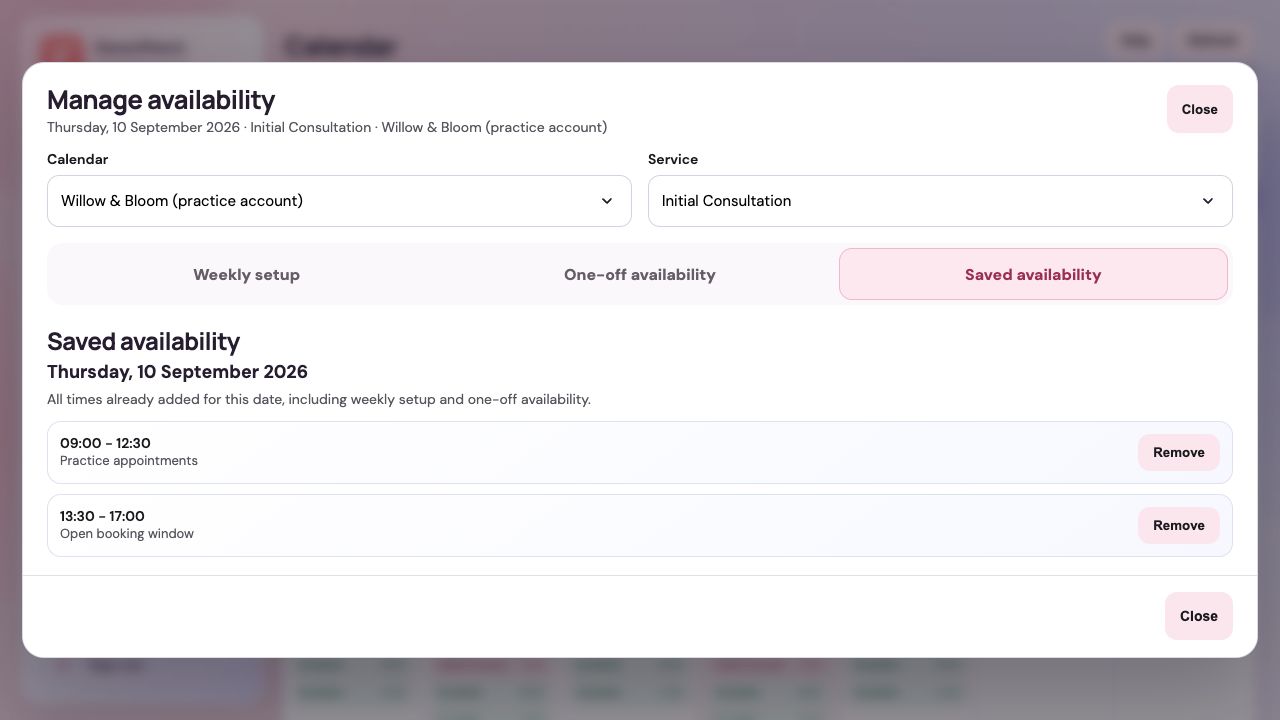
Open Saved availability
Check the calendar, service and date first. A different selection can show a different set of saved times.
Review each saved window
Read the start and end times and any notes. An empty list means there are no saved times for the current selection.
Remove only the window you intend
Use Remove against an unwanted window. Removing availability is not the same as cancelling an existing booking; check booked appointments separately.
Guide updated 10 September 2026. Illustrations use sample data; your account details may differ. These guides do not create accounts, services, bookings or availability.