
Browse all guides
Guide 06 / Bookings & availability
Set your bookable hours
Add weekly hours, make time for a one-off appointment and manage saved times.
Screen 1 of 4
Choose a calendar and weekly hours
Weekly setup adds dated availability for a chosen number of weeks. It is not an indefinite recurring schedule.
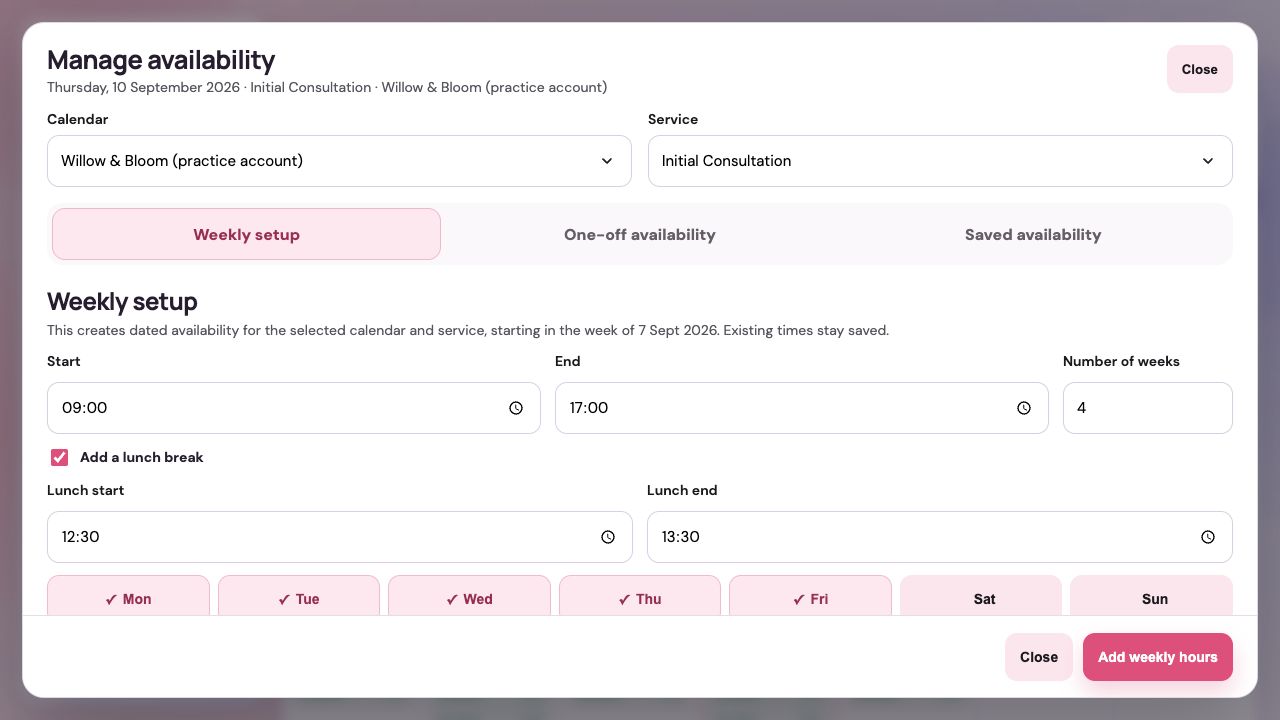
Choose the calendar and service first
Select the practitioner or team taking appointments, then select the service these hours apply to. You need both before adding hours.
Open Weekly setup
Use this tab for a repeated working pattern. One-off availability is for extra hours on one date; Saved availability shows times already added.
Set working hours and any lunch break
Enter the start and end times and number of weeks. If you enable lunch, enter a break within your working hours.
Check the days and summary before saving
Scroll down to choose weekdays and review the summary. Add weekly hours saves the schedule; Close leaves without adding it.
Before you continueCheck the starting week shown in the form. Existing saved hours stay saved; adding a new pattern does not replace them.
Guide updated 10 September 2026. Illustrations use sample data; your account details may differ. These guides do not create accounts, services, bookings or availability.