
Browse all guides
Guide 06 / Bookings & availability
Set your bookable hours
Add weekly hours, make time for a one-off appointment and manage saved times.
Screen 2 of 4
Check days, dates and the summary
Finish weekly setup by choosing the days and checking the exact pattern you are about to add.
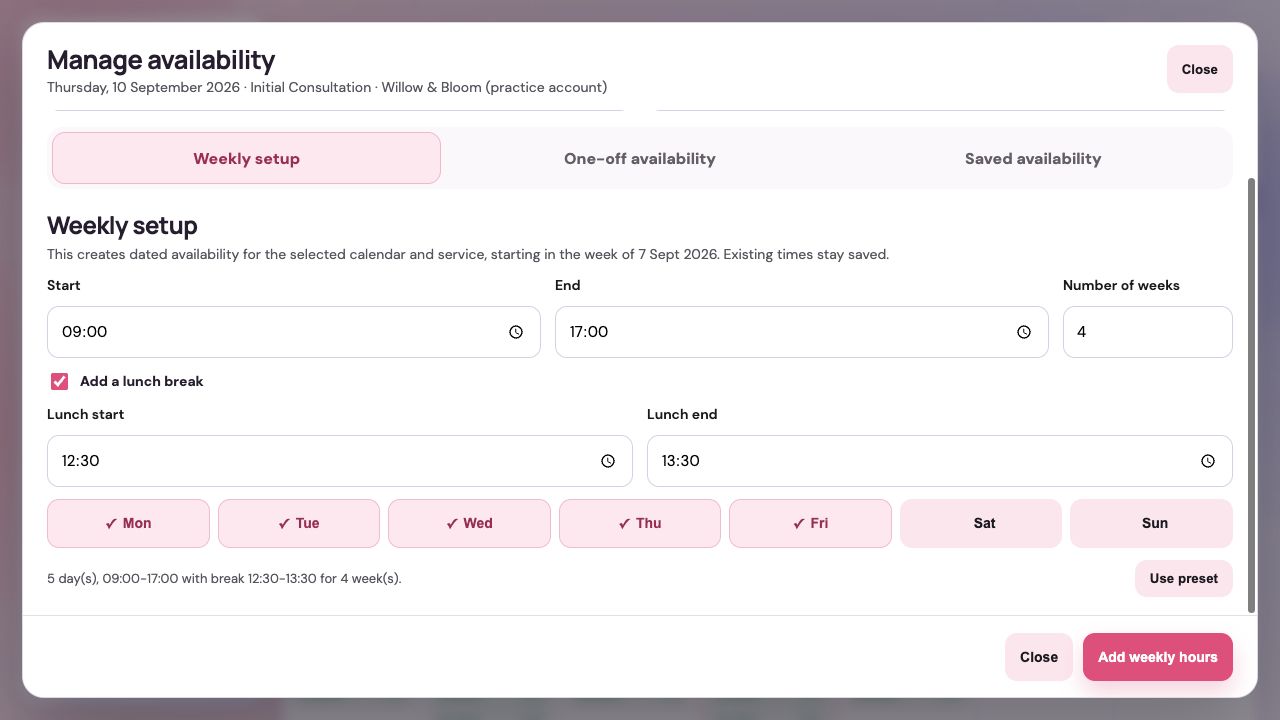
Select your working days
Selected days have a checkmark. Choose only days when this practitioner or team can deliver this service.
Read the complete summary
Check days, start and end times, the lunch break and number of weeks. Use preset resets the form to Monday–Friday, 09:00–17:00, with a 12:30–13:30 break for four weeks; it does not save it.
Add the weekly hours
Select Add weekly hours and wait for confirmation. Return to the calendar or Saved availability to check the result.
Guide updated 10 September 2026. Illustrations use sample data; your account details may differ. These guides do not create accounts, services, bookings or availability.