
Browse all guides
Guide 02 / Your practice
Manage your services
Find a service, edit its details and understand its review and visibility status.
Screen 2 of 3
Edit service details
The service editor groups the essentials and keeps the action buttons at the bottom of the window.
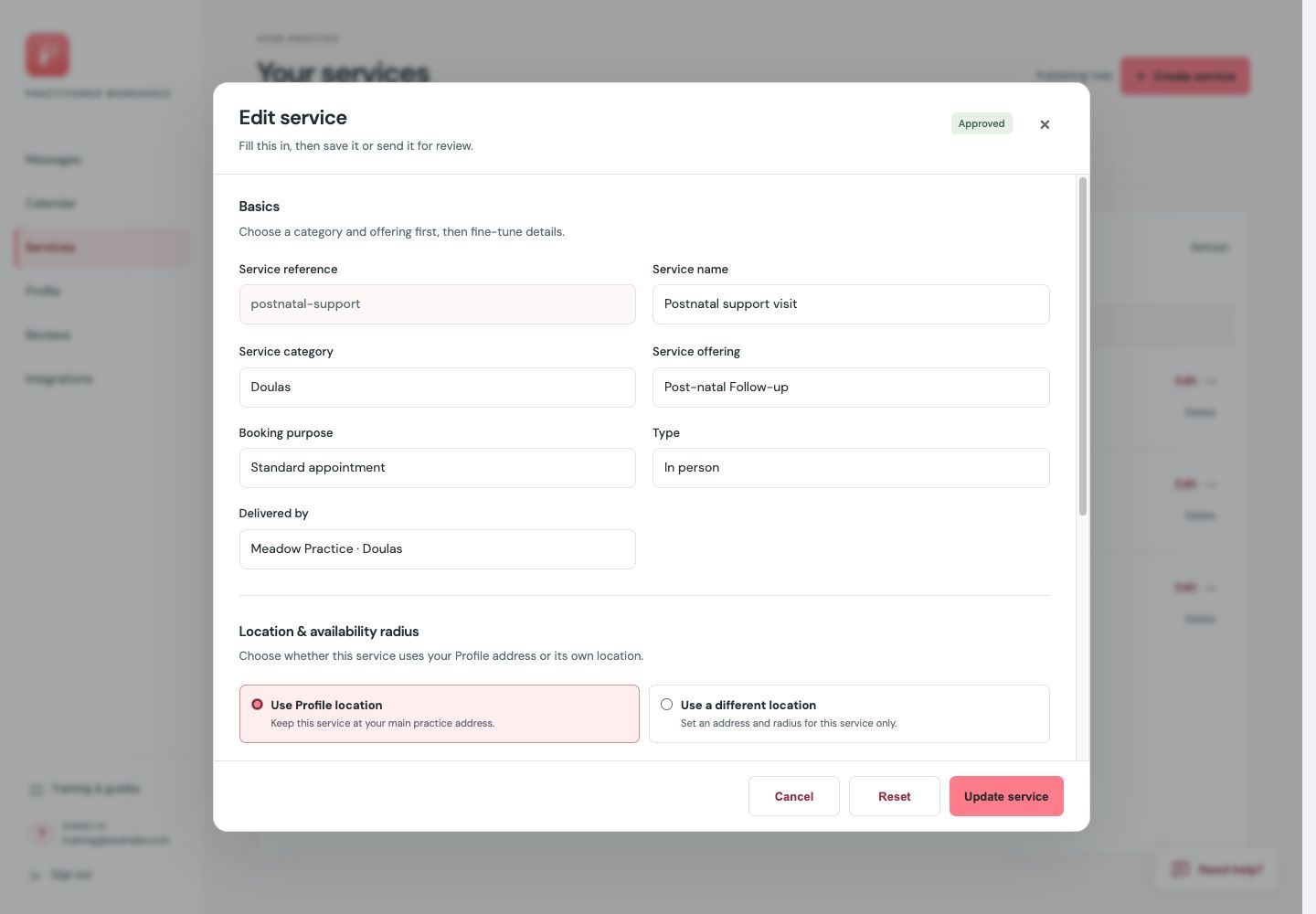
Start with the basics
Enter your own service name and choose a specialism. Appointment or package type is optional. Check the delivery format and the person or team delivering it.
Choose the service location
Choose Practice / Profile location, Other fixed location, Home Visit or Virtual appointment. Only Other fixed location asks for a service address. Home visits use your profile’s travel coverage; virtual appointments need no address or radius.
Scroll inside the editor
Continue down to Description & review stage. The bottom actions remain available while you scroll. Cancel or the close button leaves without saving.
Guide updated 29 October 2026. Screenshots use fictional sample data; your account details may differ. These guides do not create accounts, services, bookings or availability.