
Browse all guides
Guide 03 / Your practice
Make your profile your own
Manage your logo, address and practice details, then review your performance.
Screen 1 of 2
Edit your pictures and practice details
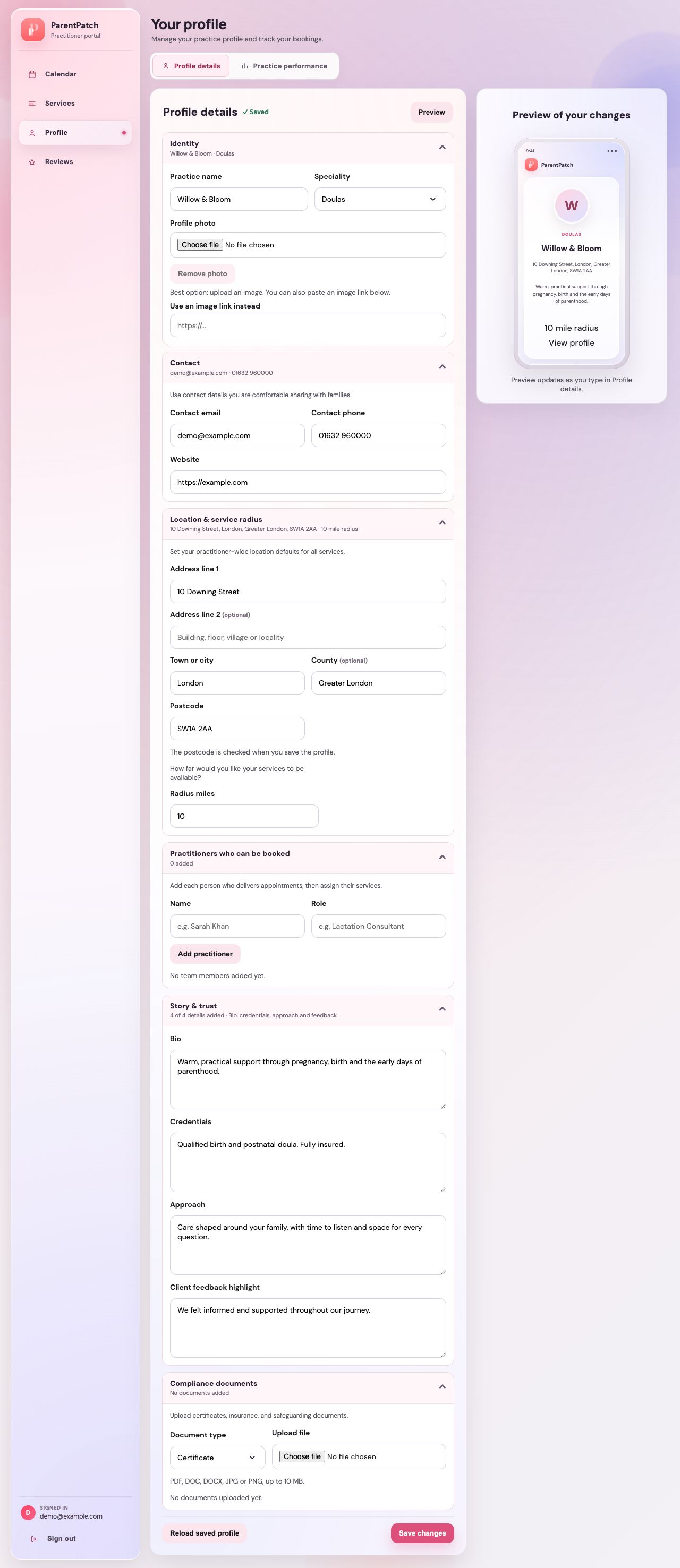
Open Profile → Profile details. Use the grouped sections to keep your practice information up to date.
A note about this illustrationThis earlier screenshot shows a single photo control. Identity now has separate Profile picture and Logo uploads. The profile picture is primary, with the logo in a small circle at its bottom right.
Open the section you want to edit
Identity contains your practice name, speciality, Profile picture and Logo. Add, change or remove either image independently. Both are shared with onboarding and family listings.
Review the preview
Your edits appear in the preview before you save them. A preview change alone does not save your profile.
Keep your address and radius accurate
Check the individual address fields, postcode and search radius. The postcode is checked when you save and sets an approximate map location.
Save your changes
Choose Save changes at the bottom and wait for confirmation. Reload saved profile discards unsaved edits and restores the last saved version.
Guide updated 10 September 2026. Illustrations use sample data; your account details may differ. These guides do not create accounts, services, bookings or availability.