
Browse all guides
Guide 07 / Your practice
Manage your connections
Subscribe to your bookings in Google Calendar or Outlook, or manage your account connections.
Subscribe to your ParentPatch bookings
Use a calendar subscription to see your practice’s bookings in Google Calendar or Outlook without connecting an account. Find See bookings in your calendar on the Calendar or Integrations page.
Create your private link
Choose Set up Google Calendar subscription or Set up Outlook subscription, then Create subscription link. The link includes bookings for everyone in your practice, regardless of the team member selected in Calendar. Events show as ParentPatch appointment, without family names or booking details.
Copy the subscription link
Choose Copy link. If copying is unavailable, select the link and use your device’s copy command. Creating a link does not add it to your calendar—you still need to complete the subscription there. Anyone with the link can see your practice’s booking times, so keep it private.
Add it to Google Calendar
On a computer, open Google Calendar. Beside Other calendars, choose +, then From URL. Paste your link and choose Add calendar. Use the URL subscription rather than importing a downloaded file so future changes can appear.
Or add it to Outlook
Open your Outlook calendar in a browser. Choose Add calendar, then Subscribe from web. Paste your link, name the calendar ParentPatch, and choose Import or Save. Do not use Upload from file; that only adds a snapshot of your bookings.
Keep managing bookings in ParentPatch
New bookings, changes and cancellations are included in the feed. Your calendar controls when it refreshes, which can take more than 24 hours. Check ParentPatch for the latest appointment details. The subscription does not read your other events or prevent clashes with outside bookings.
Manage or revoke a link
Return to Calendar or Integrations and choose Manage Google Calendar subscription or Manage Outlook subscription. You can copy the existing link again, or choose Revoke subscription link and confirm Revoke link. Remove the subscribed calendar from Google or Outlook too: revoking stops future updates but does not erase downloaded appointments. A replacement link must be added to your calendar again.
Subscriptions and two-way connectionsAlready using a two-way connection? Use one export method per destination calendar to avoid duplicates. Two-way connections also check outside busy times; subscriptions do not. Disconnecting a two-way connection stops those availability checks.
Screen 1 of 2
Find your calendar and practice tools
Integrations groups connections by purpose and shows the current status of each tool.
A note about this illustrationThis screenshot predates the Calendar subscription panel. In the current interface, See bookings in your calendar appears above the connection cards. Follow the subscription steps above for that option.
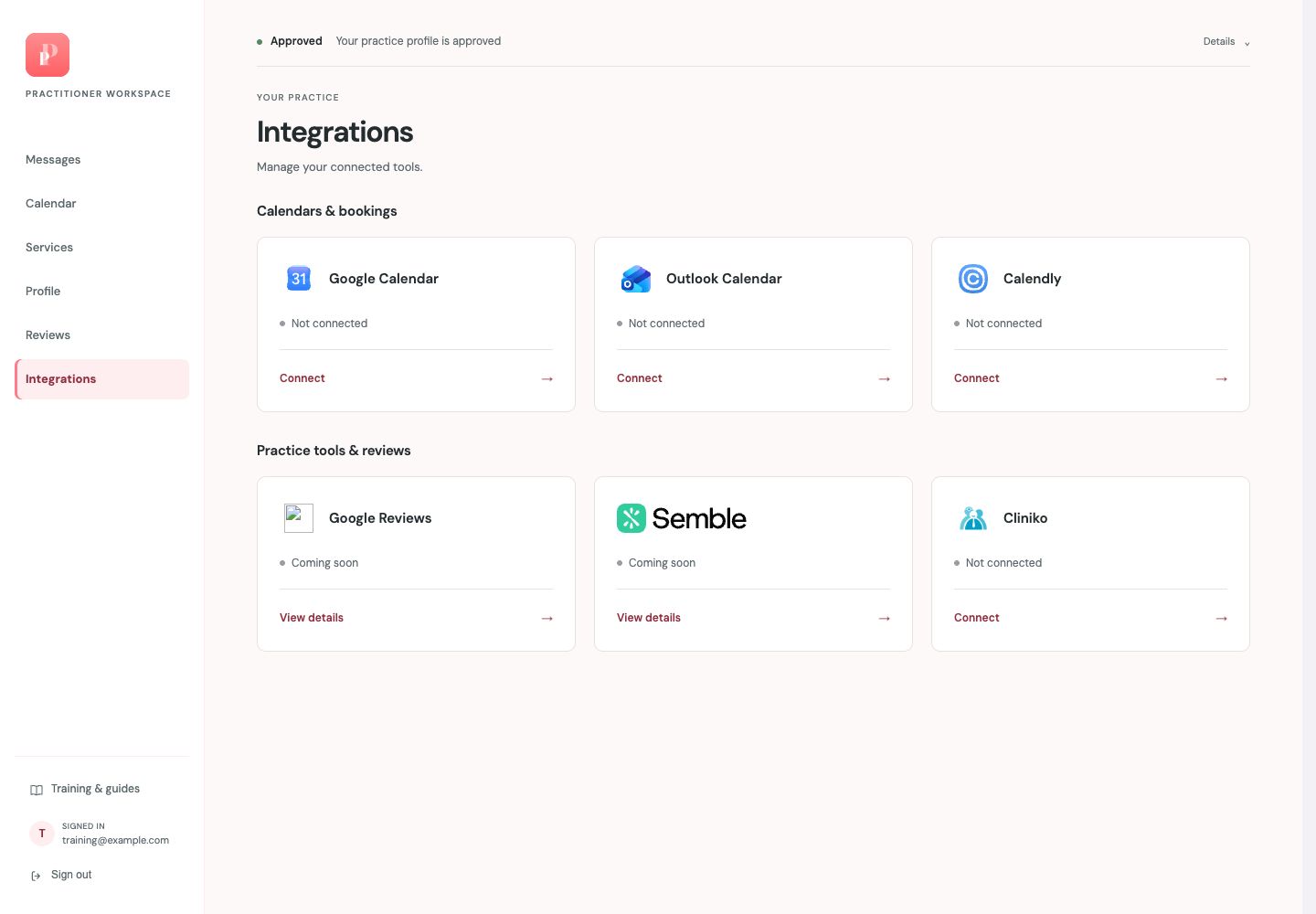
Find calendar and booking connections
Google Calendar, Outlook Calendar and Calendly appear in the first group. Read the status before choosing Connect.
Find practice tools and reviews
The second group contains Google Reviews, Semble and Cliniko. A Coming soon status means the connection is not available to use yet.
Open the relevant tool
Choose Connect or View details on a tile. Follow the instructions shown for that specific tool and account; available actions may differ.
Before you continueTwo-way calendar connections can block outside busy times; subscription links cannot. Moving or deleting an exported event in Google or Outlook does not change the ParentPatch booking. Manage appointments in ParentPatch.
Guide updated 29 October 2026. Screenshots use fictional sample data; your account details may differ. These guides do not create accounts, services, bookings or availability.